
Program an ESP32 without writing code: browser flash + Claude
You can get an ESP32 reading a light sensor and pulsing a relay without opening an IDE, writing a sketch, or compiling anything. The board is flashed from a browser tab, it joins your Wi-Fi over the same USB cable, and the automation is written by Claude from a sentence you type — as a macro that runs on the ESP32 itself. You read what it wrote and decide whether it may run. This guide walks the whole path on a bare dev board, using the board's own LED as the "relay" so there is nothing to wire up before you try it.
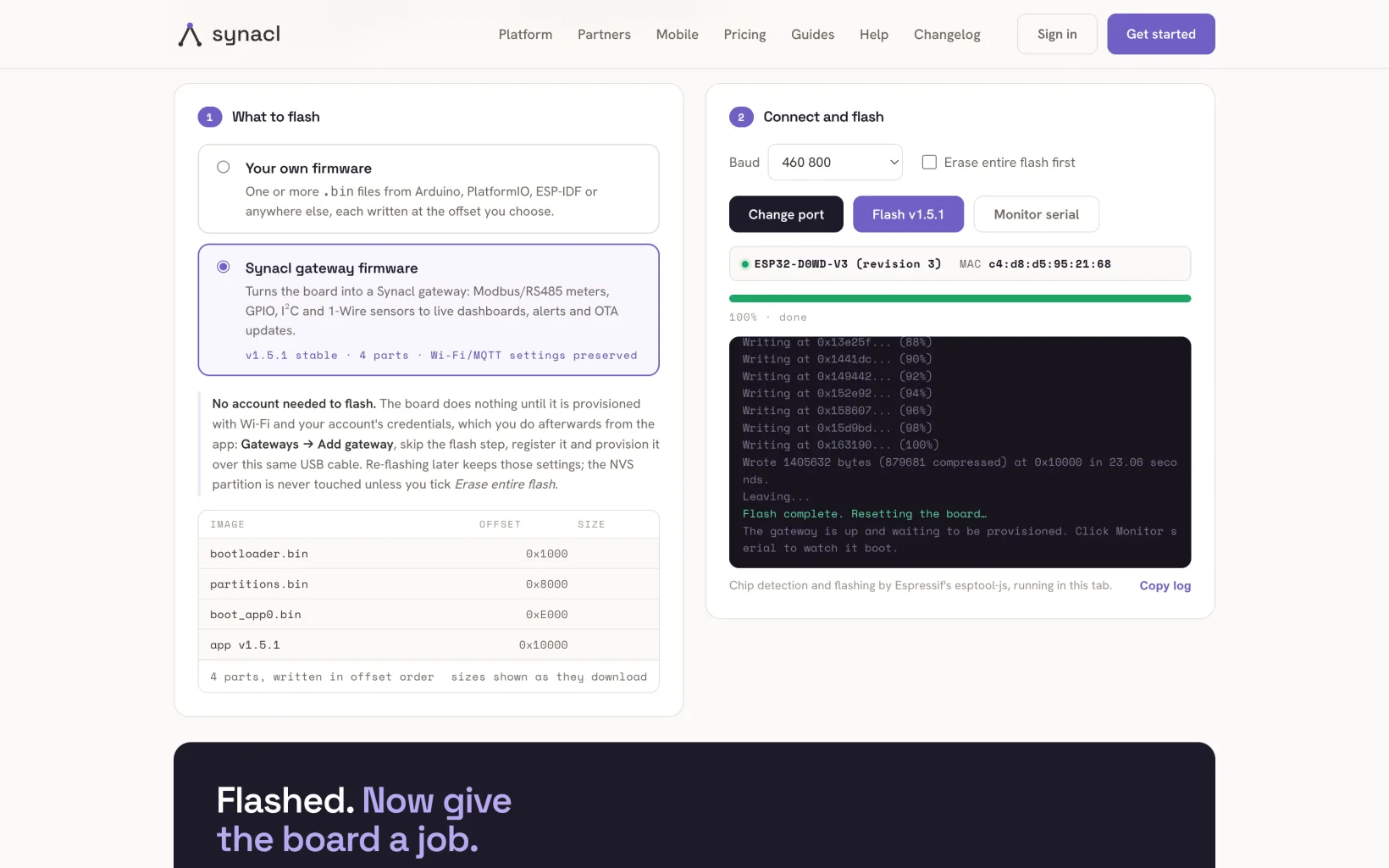
1. Flash the gateway firmware from the browsersynacl.com/flash — pick “Synacl gateway firmware”, click Connect, choose the USB port, Flash. About 25 seconds at 460800 baud; no toolchain, no account yet. 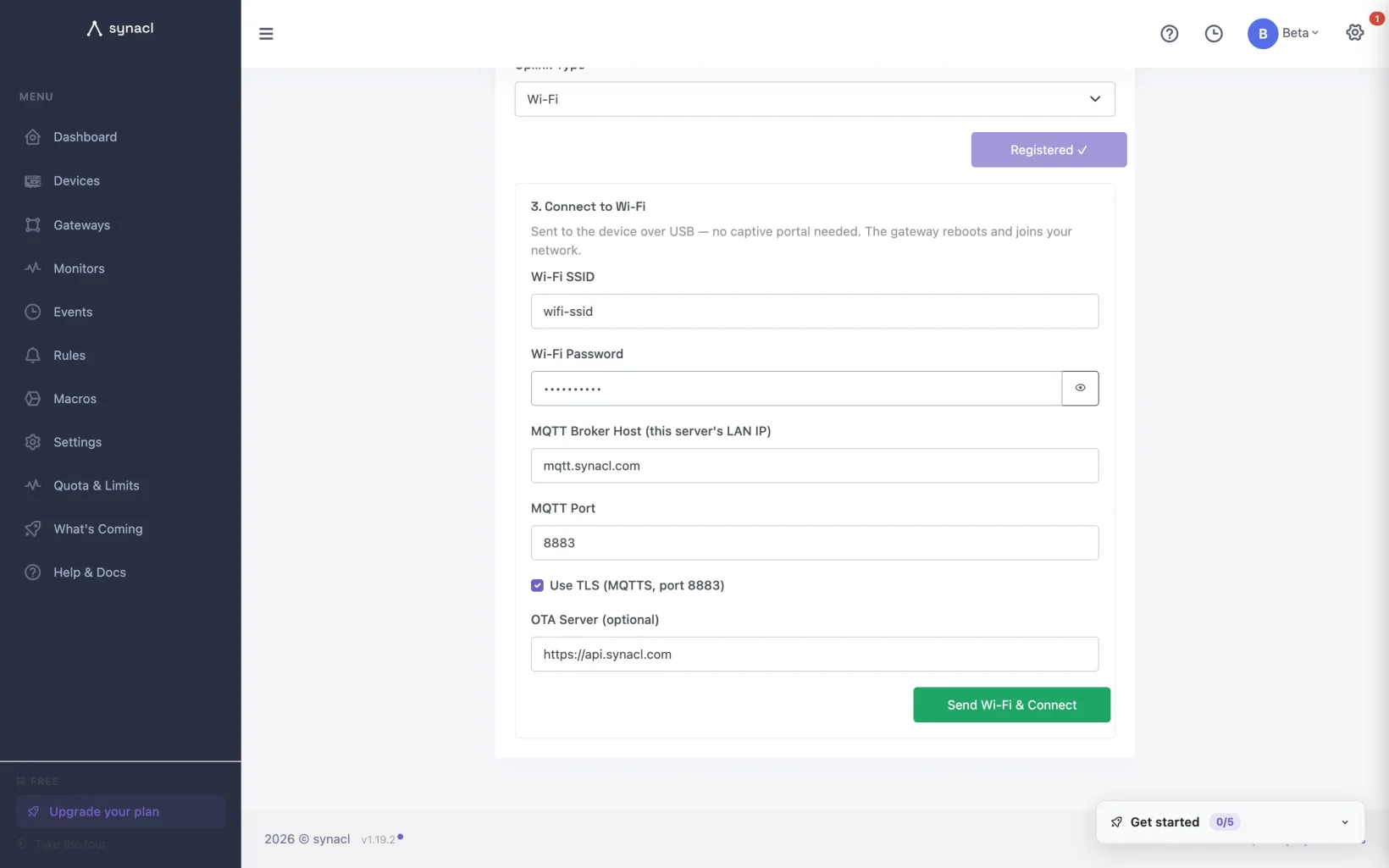
2. Register the gateway and send it Wi-Fi over the same cableGateways → Add gateway. Skip the flash step, give the gateway a name, then type your Wi-Fi network and password: the app sends them over USB, no captive portal. 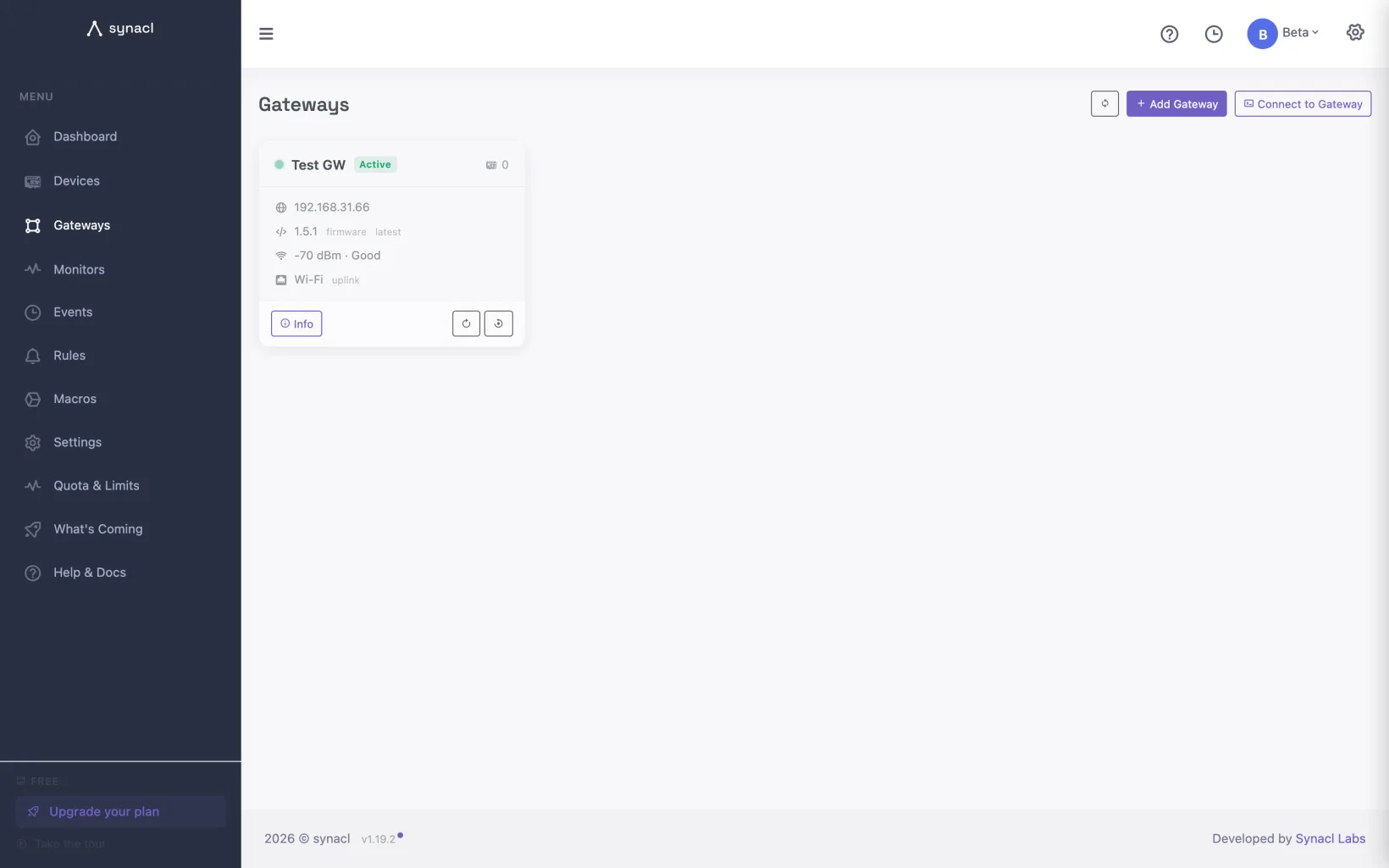
3. The board comes onlineWithin about 90 seconds the gateway shows online with its firmware version. Nothing is wired to it yet. 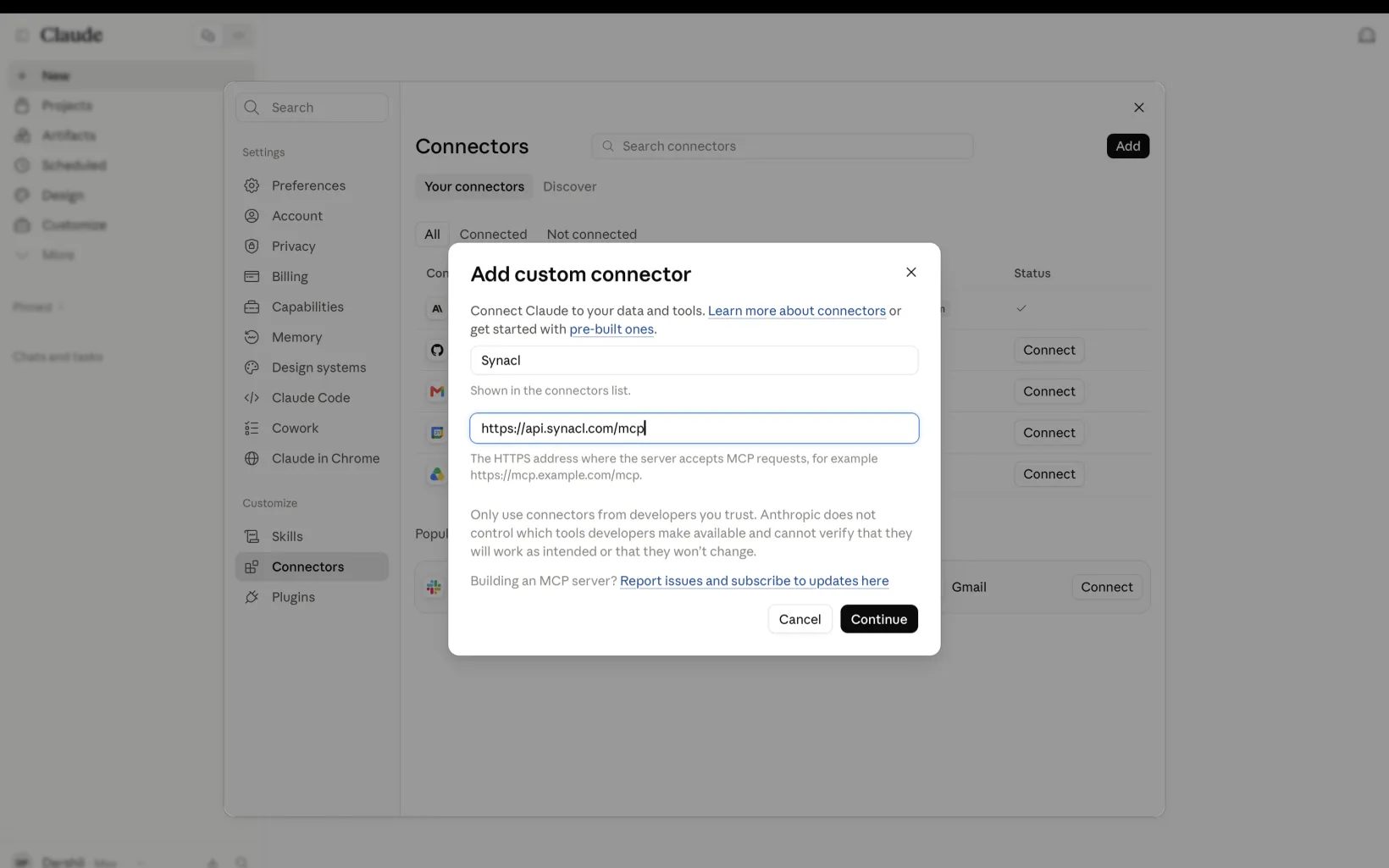
4. Add Synacl to Claude as a connectorIn claude.ai, add a custom connector with the URL https://api.synacl.com/mcp. That is the whole setup on the Claude side. 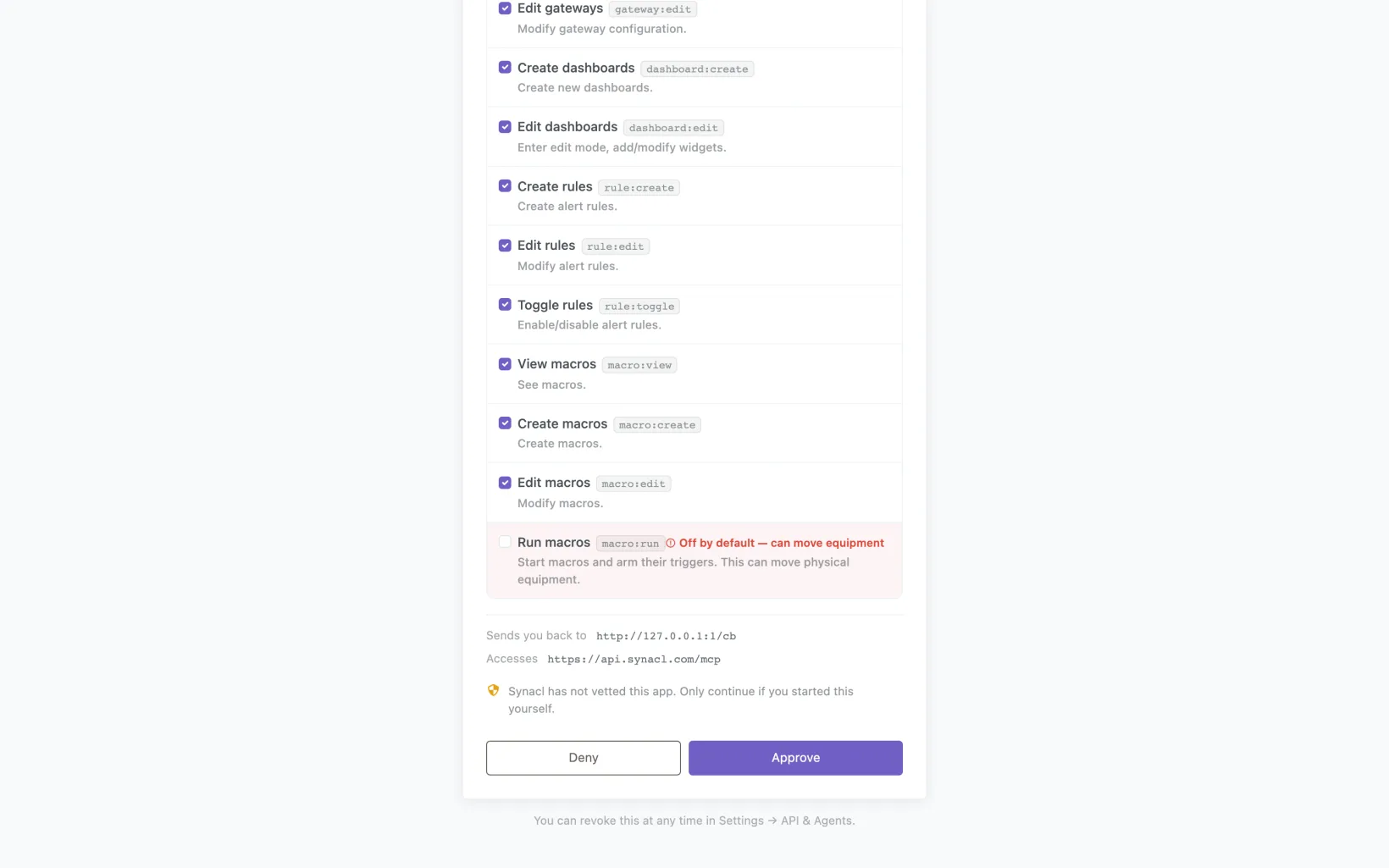
5. Approve what Claude may do — note what is not pre-tickedSynacl's consent screen lists every permission. “Run macros” arrives unticked and says “Off by default — can move equipment”; everything else is pre-selected, and you can grant less than asked. Tick it for this walkthrough — step 8 shows it is not enough on its own. 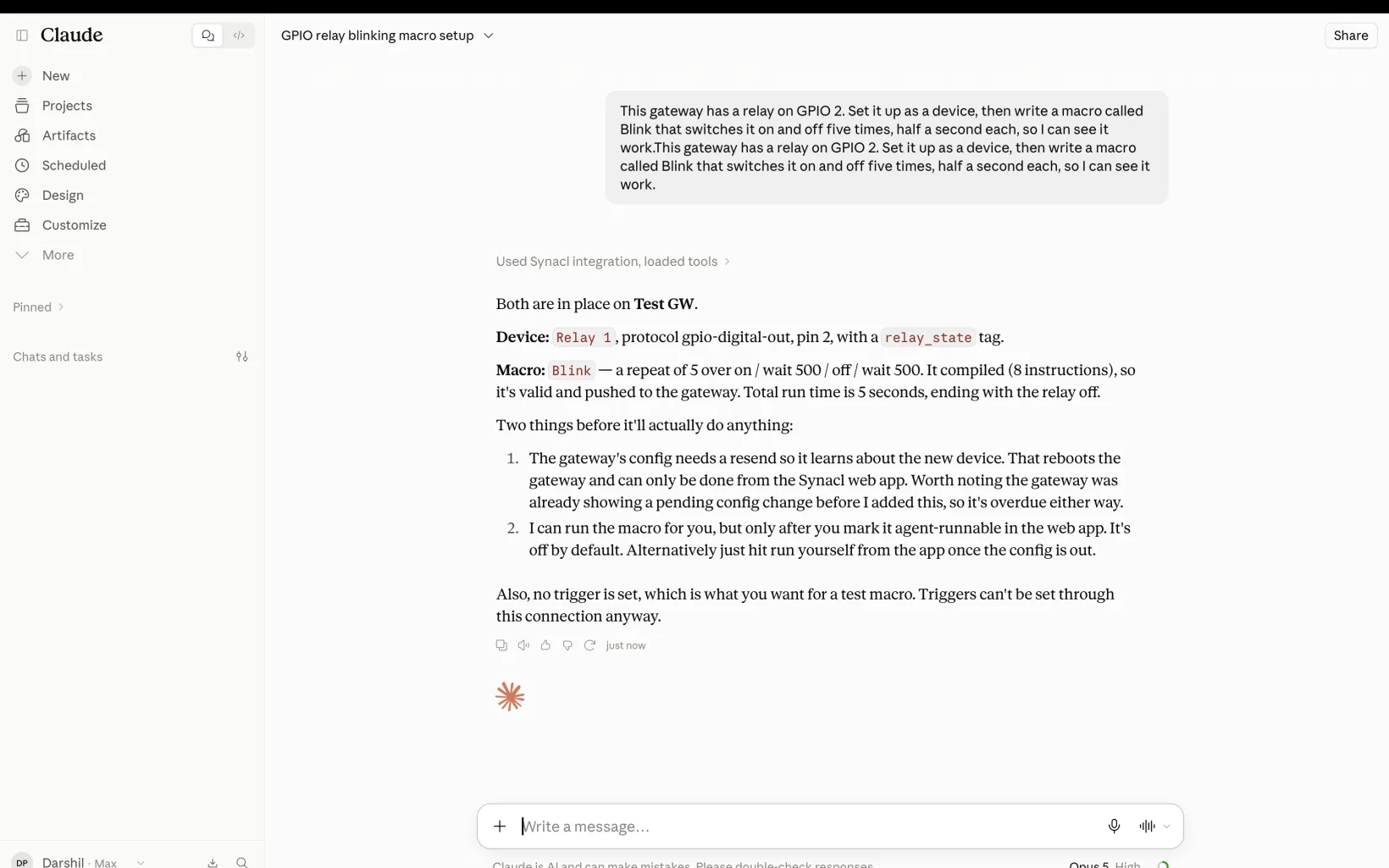
6. Describe the automation in one sentence“This gateway has a relay on GPIO 2. Set it up as a device, then write a macro called Blink that switches it on and off five times, half a second each.” Claude creates the device and the macro, compiles and pushes it, and tells you the config resend that puts them on the board is your click. 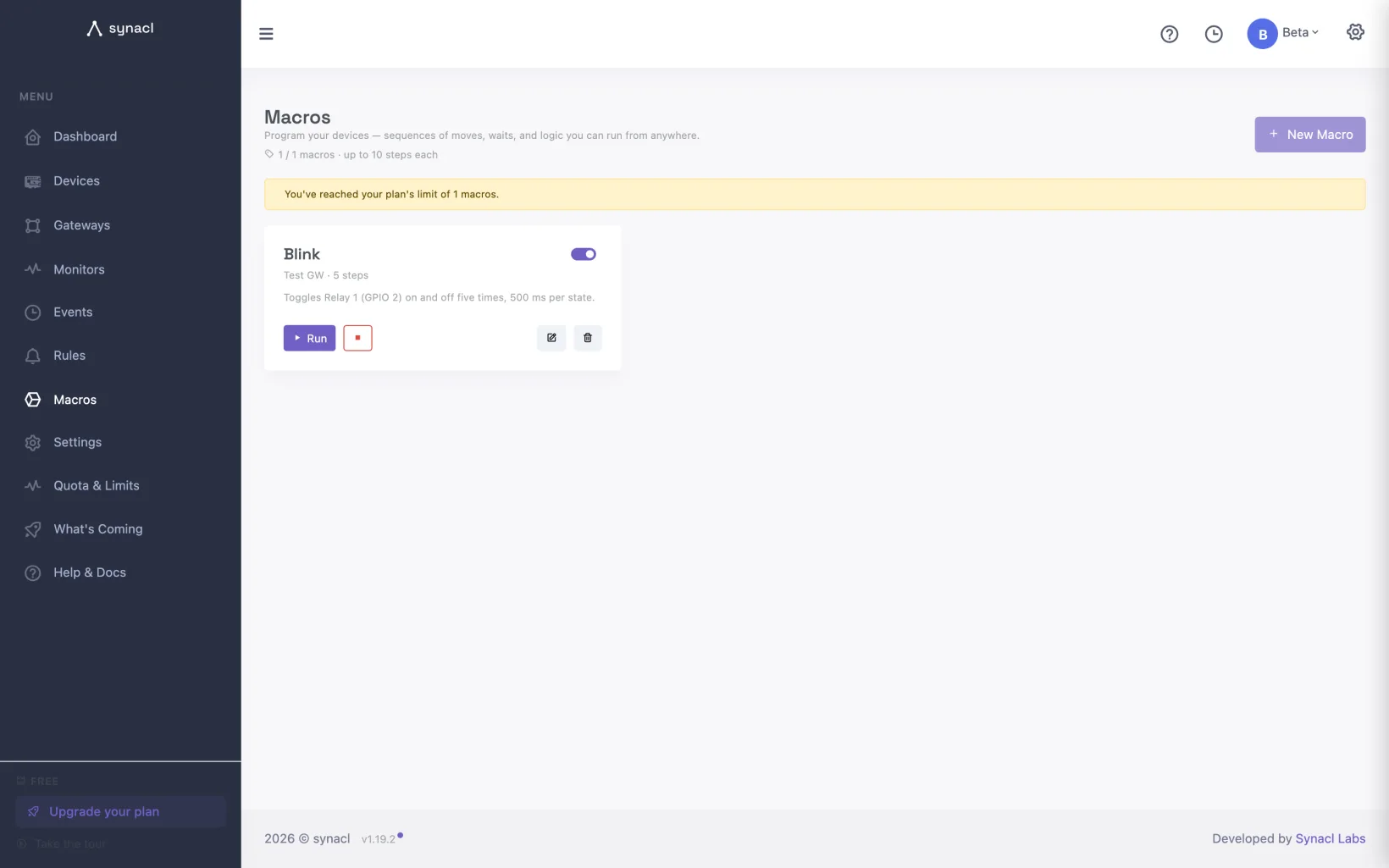
7. The macro Claude wrote, in your appMacros shows Blink on your gateway with its five steps: a repeat of five around relay on, wait half a second, relay off, wait again — and Claude's own one-line description. Read it before anything runs. 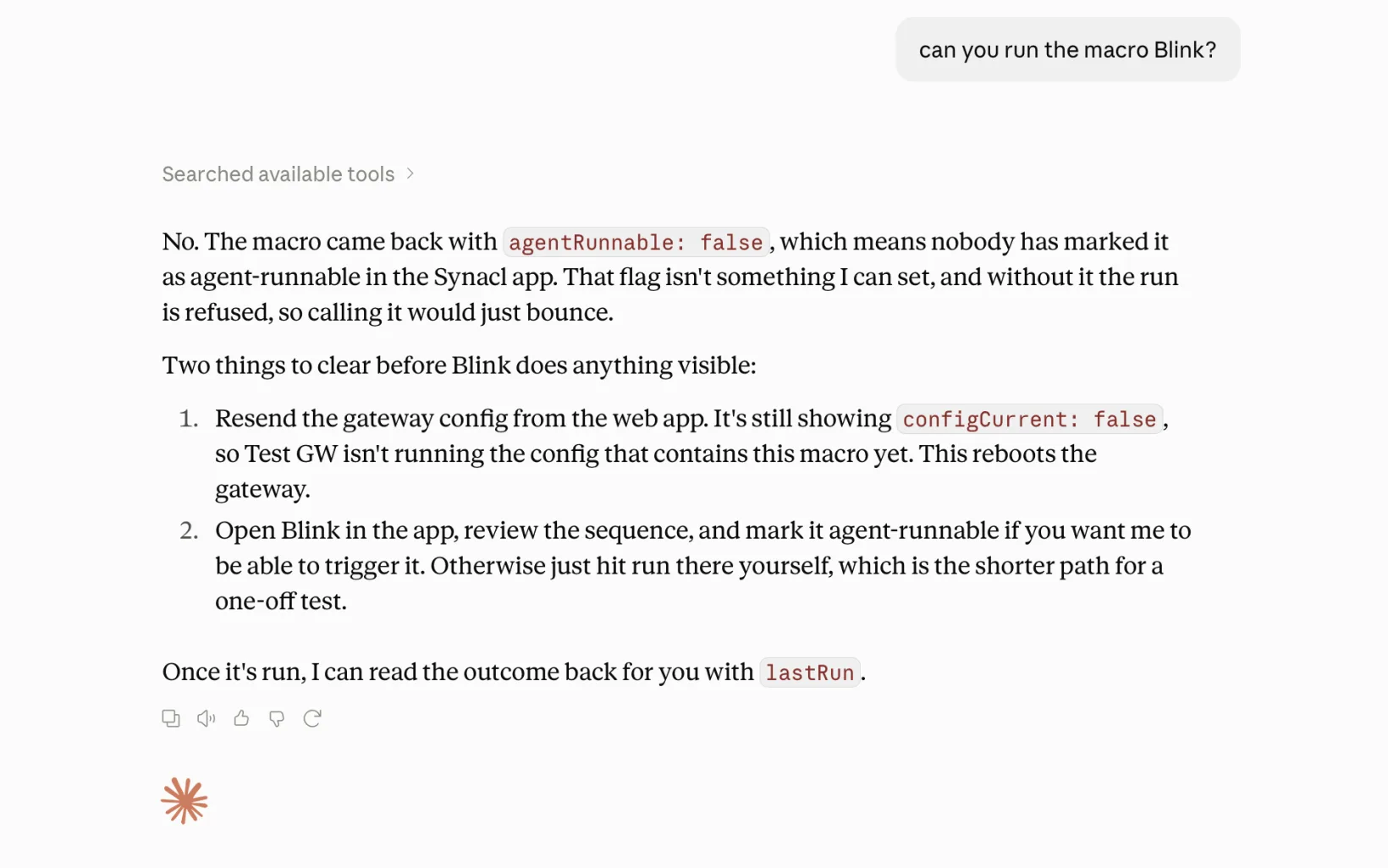
8. Ask Claude to run it — and it is refusedAsked to run Blink, Claude reads the macro first: “agentRunnable: false on Blink. My connection holds macro:run, but that permission only applies to macros a person has explicitly marked agent-runnable in the web app. That flag is deliberately not something I can set myself.” It holds the Run macros permission and still cannot start it — two keys, and software only ever holds one. 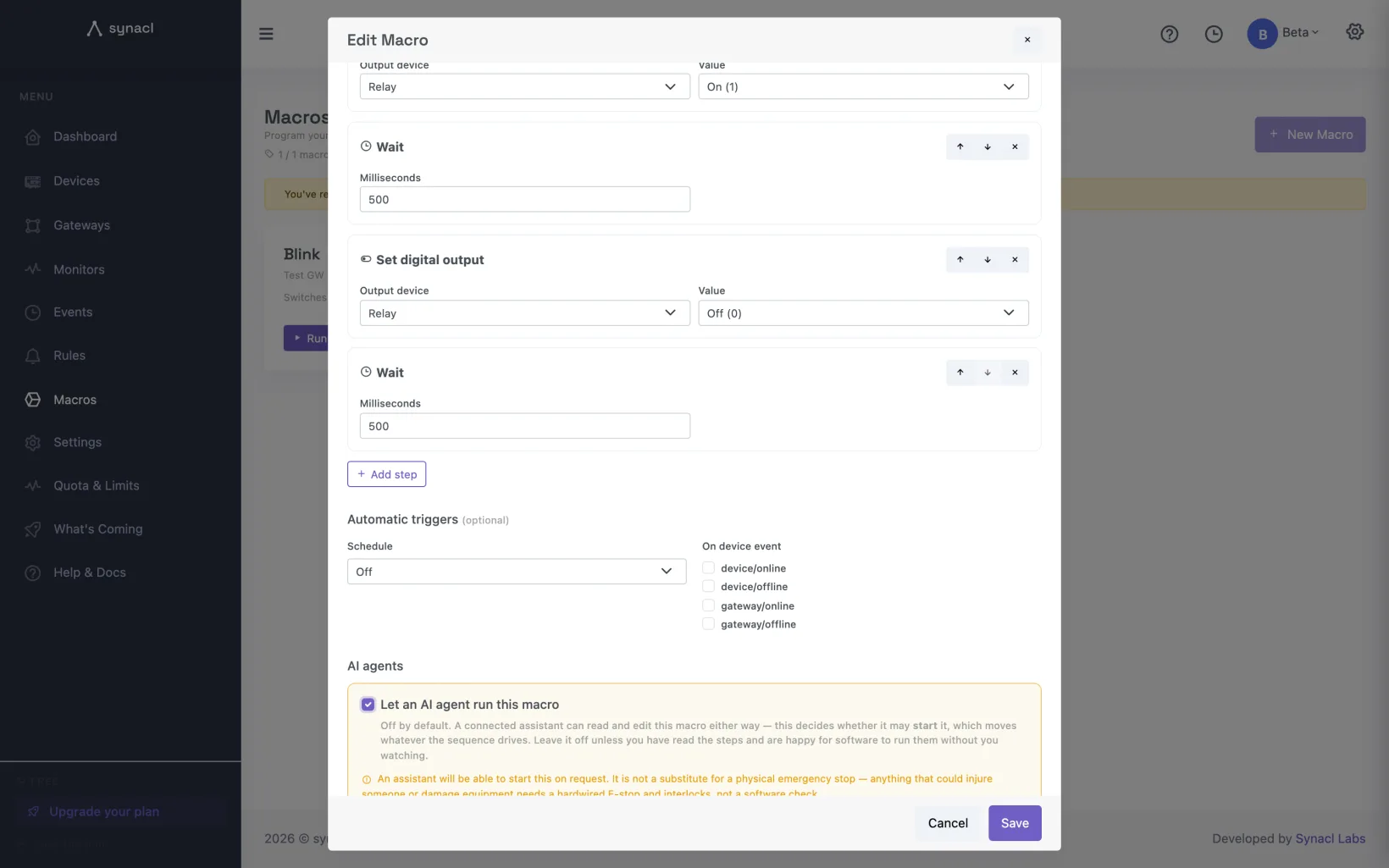
9. You read it, you allow itEdit the macro and tick “Let an AI agent run this macro”. It is off on every macro by default, and no assistant can set it, not even on macros it wrote. 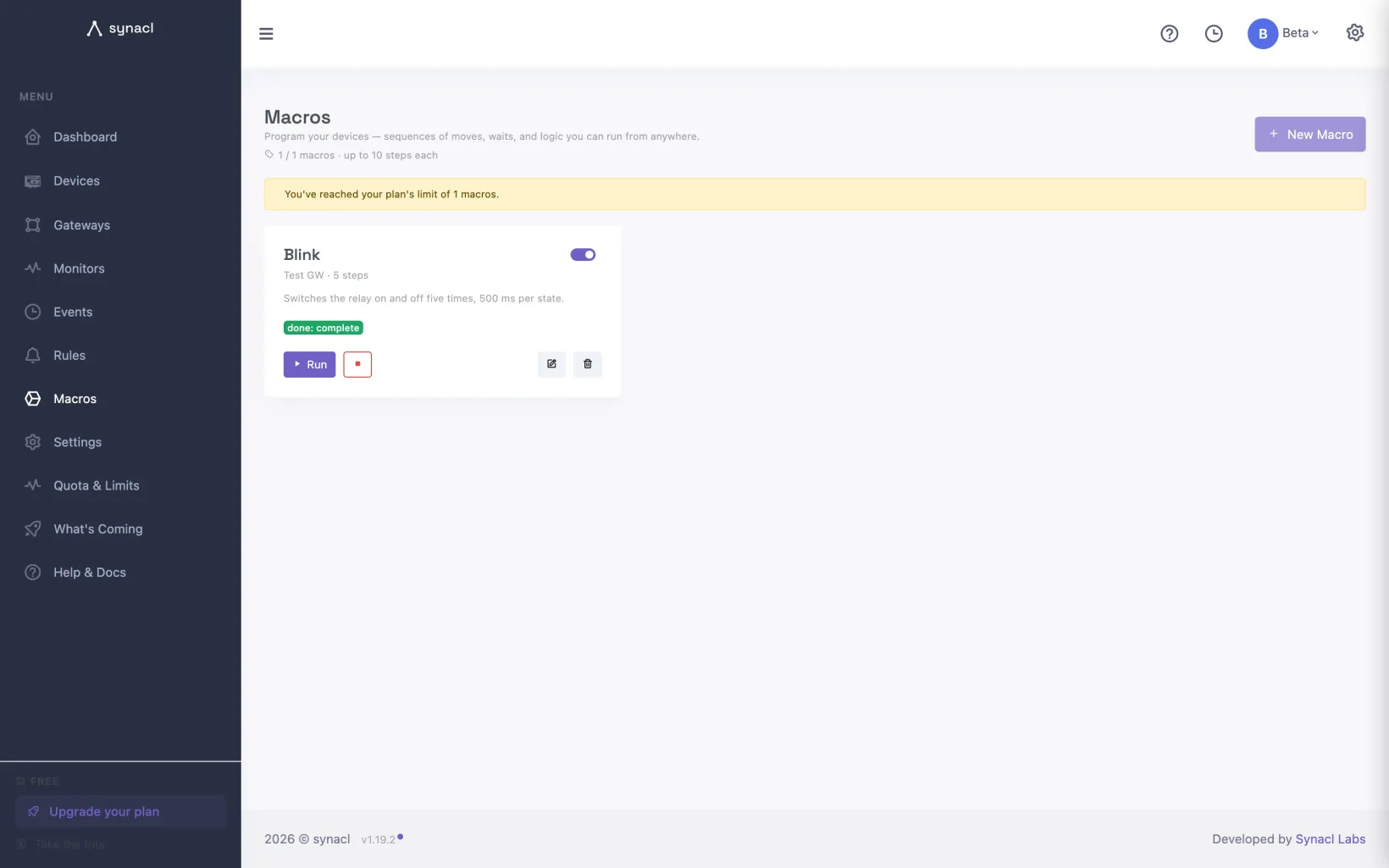
10. Now it runs — on the board, acknowledged by the boardAsk again. The gateway confirms the run started, the status goes requested → started → done, and the output pin toggles five times. Claude reports what the gateway acknowledged, not what it sent.
Plays from YouTube when you press play — nothing loads until then.
What you need
- An ESP32 dev board and a USB data cable. Any classic ESP32 works with the Synacl firmware; the board in the pictures is a plain ESP32-WROOM module with the usual blue LED on GPIO 2.
- Chrome or Edge on a desktop. Browser flashing and USB provisioning use the Web Serial API, which Firefox and Safari do not have.
- A free Synacl account — the first five devices cost nothing. Create it after the flash; the flasher works without one.
- Claude, with a plan that supports custom connectors. The connection is a standard remote MCP server, so any assistant that speaks MCP works the same way; the screens here are claude.ai.
- For the last section: a BH1750 light sensor — the common GY-302 breakout — on the I²C pins: 3.3 V, GND, SDA to GPIO 21, SCL to GPIO 22, ADDR left low for address 0x23. Any I²C sensor with a datasheet works the same way. A relay module is only needed if you want to switch something real instead of watching the LED.
The whole thing takes about fifteen minutes, most of it waiting for the board to reboot.
Step 1 — Flash the gateway firmware from the browser
Open synacl.com/flash, plug the board in, and choose Synacl gateway firmware. The page fetches the current stable build and shows its version. Click Connect, pick the board's serial port in the browser's chooser, then Flash. At the default 460800 baud the four images take about 25 seconds; the log ends with "Flash complete" and the board restarts on its own. Leave Erase entire flash off — you do not need it on a fresh board, and on a board that was already a Synacl gateway it would wipe the saved Wi-Fi and account settings.
No port in the chooser usually means a charge-only cable; a failed first handshake means holding BOOT while you click Connect. The browser flashing guide covers drivers, offsets and every error message, and the flashing article covers the Synacl build.
What you have now is a gateway waiting for two things: a Wi-Fi network and an account to belong to.
Step 2 — Register it and send Wi-Fi over the same cable
Create your account, then open Gateways → Add gateway. The page has three steps and you have already done the first, so skip the flash section, give the gateway a name in step 2 and register it, then in step 3 type your Wi-Fi network and password and press Send Wi-Fi & Connect. The app sends the credentials and the gateway's account key over USB — no captive portal, no hotspot to find (the board does offer a Synacl-Gateway fallback portal for provisioning without a computer).
Back on the Gateways page the new gateway shows online within about ninety seconds, firmware version beside it. Nothing is wired to it yet; the next steps add the devices in software, and a pin does not care what is attached until something runs.
Step 3 — Connect Claude
In claude.ai, add a custom connector and give it the Synacl MCP endpoint:
https://api.synacl.com/mcp
The first time Claude uses it, your browser opens Synacl's authorization screen. Read it: it lists every permission Claude asked for under "It will be able to", and you can untick anything you would rather not hand over. Almost everything is pre-selected — creating devices, editing tags, writing macros — because none of that moves anything. One line is different. Run macros arrives unticked and is labelled "Off by default — can move equipment". Tick it — and keep step 5 in mind, where you will see that this permission on its own is not enough to run anything. Approve, and Claude is connected to your account and only your account. You can revoke the connection at any time from Settings → API & Agents.
Everything Claude does from here goes through that connection, with the permissions you ticked and no others — the AI agent article has the full list.
Step 4 — Say what the board should do
Now the sentence. In a new chat, with the connector enabled:
This gateway has a relay on GPIO 2. Set it up as a device, then write a macro called Blink that switches it on and off five times, half a second each, so I can see it work.
Say where things are wired: Claude will not guess a pin, because this connection cannot delete a device and a free account has five device slots, so a wrong guess would cost you one — it asks instead. Given the pin, it looks up your gateway, creates the device — a GPIO digital output on GPIO 2, active-high, off by default — and writes the macro.
One click stays yours. A new device only reaches the board when the gateway's config is resent, and a resend reboots the gateway, so Claude reports it as pending instead of doing it. Open the gateway from its card (Info) and press Resend config; about thirty seconds later the board is back, now owning the relay pin. A Synacl macro is a short program made of blocks: things like switch this output, wait, repeat, read a tag, if. For Blink, Claude produces a repeat of five with four blocks inside it: output on, wait 500 ms, output off, wait 500 ms. If it gets something wrong the platform tells it exactly which block did not compile, and it fixes it; you see none of that unless you want to.
Open Macros in your app and there it is: Blink · your gateway · 5 steps, with a Run button. Click into it and read the steps — the part most "AI does your hardware" demos skip. An assistant that has never seen your rig gets the shape right and the specifics plausibly wrong — a pin, a duration — and plausible-and-wrong is exactly what you want to catch while the board is doing nothing.
Step 5 — Review it, then let it run
Ask Claude to run Blink. It won't. In our run it read the macro first, saw agentRunnable: false, and said so rather than calling the tool; had it called anyway, the platform's answer is worth quoting, because it is the whole design in five lines:
Macro "Blink" is not marked as agent-runnable, so this connection may not start it. That is a deliberate per-macro setting, separate from the permissions on this token: someone has to read the sequence and allow an agent to run it, in the Synacl app. Ask the user to do that if they want it. Do not look for another way to run it.
Running a macro needs two separate keys, and software can only ever hold one of them. The first is the Run macros permission on Claude's connection — the one that arrived unticked and that you ticked in step 3. Claude holds it, and it is still refused. The second lives on the macro itself: in the editor, below the triggers, a box labelled "Let an AI agent run this macro". It is off on every macro, including the ones an assistant wrote, and no assistant can tick it — the platform drops the field from any request that comes over the agent connection. A permission says which software may act; it cannot tell you whether this sequence is safe. So the platform asks you about the sequence, one at a time.
You have read Blink. Tick the box, save, and ask again.
This time the gateway acknowledges the run, and Claude tells you so: not "I sent it" but "the gateway confirmed it started". The card in Macros steps through requested → started → done, and the blue LED on GPIO 2 flashes five times. That was your relay. Swap the pin for the one your relay module is on and the same macro drives the coil.
Two honest notes. Claude waits a few seconds for the gateway's acknowledgement and reports unknown if it never comes — never done. And the run happened on the ESP32: the board timed the half-seconds itself and would have finished them with the Wi-Fi pulled — which is also why Abort is a network message, not an emergency stop.
Step 6 — Make it react to the light
Wire the BH1750 — 3.3 V, GND, SDA to GPIO 21, SCL to GPIO 22, ADDR to GND — then tell Claude about it and change the macro rather than writing a second one:
There is a BH1750 light sensor on I²C — SDA on GPIO 21, SCL on GPIO 22, address 0x23. Add it as a device, then change Blink so it first reads the light level and only pulses the relay for two seconds if it is darker than 20 lux. Rename it to Dark relay.
The sensor becomes an I²C device on those pins with a generic tag at address 0x23 — the BH1750 has no built-in driver, so Claude fills in the datasheet numbers: write 0x10 once to start continuous measurement, read two bytes, most-significant first, divide by 1.2 for lux. The I²C article lists those fields if you want to check them. Resend the config once more, and within a poll or two the lux tag is live; cover the sensor with your hand and watch the number fall. Then Claude rewrites the same macro: a read_tag block that puts the lux reading in a variable, an if on that variable, and the pulse inside it. Read it again — a changed macro is a new sequence, and the agent-runnable tick you gave Blink still stands, so this is your moment to check the threshold and the pin before anything moves. Then cover the sensor and ask Claude to run it: the LED pulses. Uncover it and run again: nothing happens, and the run still finishes cleanly — the macro read the sensor, decided, and stopped.
That last run is the thing a lot of people expect the platform to do differently, and it deliberately does not: a macro runs once per trigger. Dark relay reads the sensor one time, decides, and stops. It does not sit there watching the light. To make it a night-light that switches itself you give it a schedule — in the macro editor, every 30 seconds — or fire it from an alert rule on the lux tag. Either one takes you a minute in the app. Claude cannot do it. An assistant can write and edit macros, but it cannot put one on a schedule, wire it to a device event, or re-enable a disabled one; unattended runs are set up by a person, whatever permissions the assistant holds. A sequence that fires at three in the morning with nobody in the room stays your decision.
Once scheduled, the whole loop — read, compare, switch — runs on the board every thirty seconds whether or not the cloud can reach it, and every run is bounded by the gateway's own ten-minute ceiling.
What Claude cannot do, and why
It is one rule, drawn in one place: an assistant may author, a person must allow. Over this connection an assistant cannot:
- Delete anything — devices, gateways, dashboards, rules or macros. It can create a duplicate; it cannot remove your data.
- Send a raw command to a pin, coil or register. Anything that moves does so by running a macro you can read.
- Arm a macro: no schedules, no device-event triggers, no re-enabling a disabled one.
- Mark its own work runnable. The agent-runnable tick is set by a person, in the app, per macro.
- Hold more than you ticked. Every refusal names the permission it lacks, so you can decide, not guess.
Your plan's macro allowance and the size of a macro are listed on the plans page; the free tier is enough for everything in this guide.
Said plainly: none of this is a safety function. The bounds are real — one gateway, one run at a time, ten minutes, an abort button — but they bound a mistake; they do not make a machine safe. Abort is a message over the network and cannot reach a gateway that is offline. Synacl is not safety-rated. If the thing on the other side of the relay can hurt someone or wreck something, the protection has to be physical and independent of the platform: a hardwired emergency stop in the power path, not routed through the ESP32; interlocks; a properly rated relay; an actuator whose worst case is survivable. Grant Run macros for the things you would be comfortable letting a colleague start from the next room.
Where to go next
The same three pieces — a browser flash, an assistant over MCP, macros on the board — scale from a blinking LED to a Modbus meter and a pump. For the industrial version of this walk — an RS485 sensor on the same gateway, readings on a dashboard with an alert — read ESP32 Modbus RTU to a cloud dashboard in 15 minutes. The macro recipes show what the blocks can do by hand, and the Macros article has the limits and the safety notes in one place.
Try it on your own hardware
Synacl is free for five devices — no card, no sales call. Flash a gateway from the browser, add your first device, and see live data in a few minutes.